
Step 1 of 9 · Overview
Protect every device on your home Wi-Fi
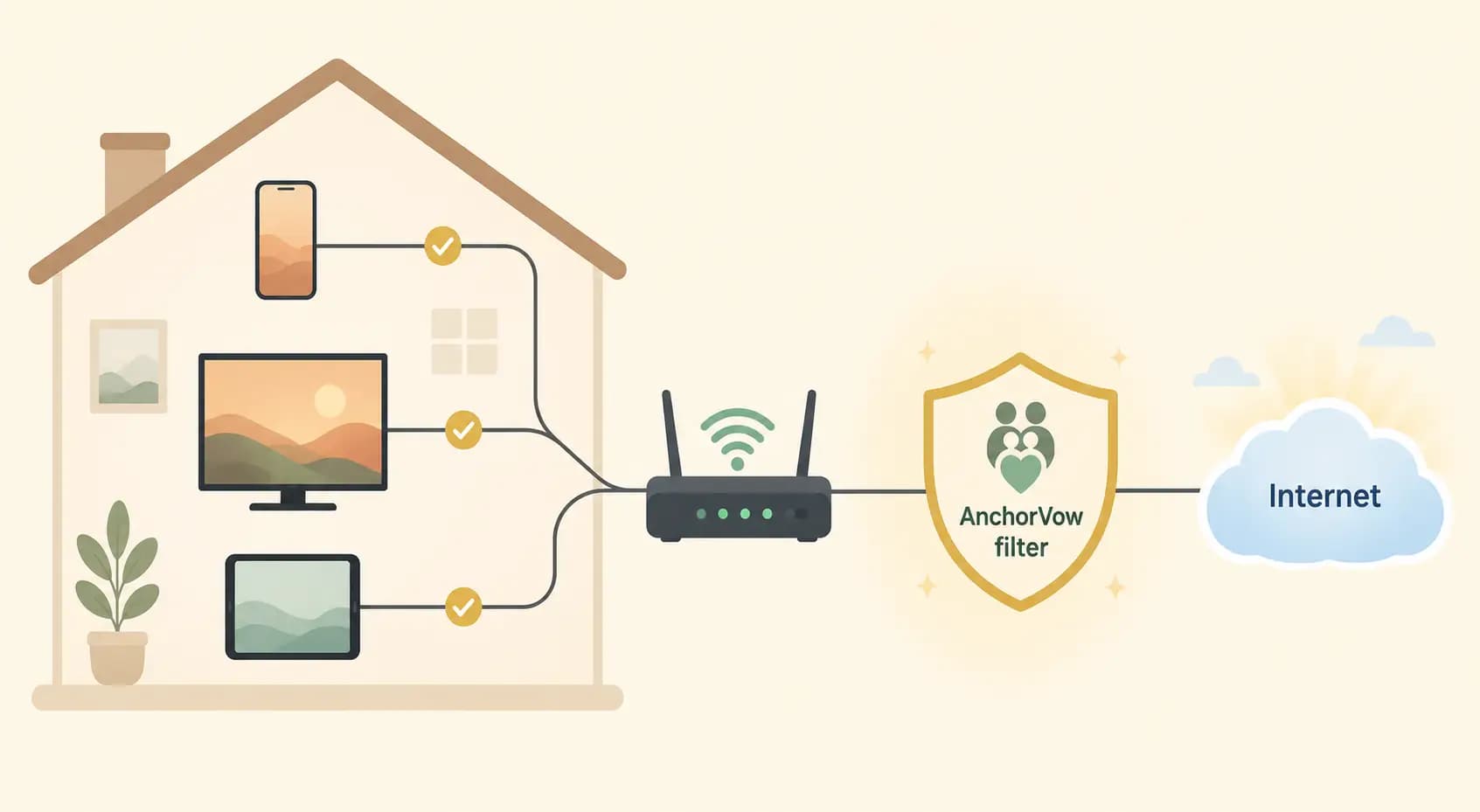
This guide walks you through adding AnchorVow's safe-internet filter to your home Wi-Fi router. Once it is set up, every device that connects to your home Wi-Fi(phones, the TV, a laptop, even a guest's tablet) uses AnchorVow's filter. It only works while a device is on your home Wi-Fi.
What this is, in plain words
Your router is the box that shares your home internet over Wi-Fi. This setup tells the router to send every request for a website through AnchorVow's filter first, so known-harmful sites are blocked for everything on the network. You do it once, on the router, and it covers the whole home.
Who this is for
This guide is written for both people in an accountability relationship: the Vower (the person keeping a commitment) and the accountability partner (a trusted person who helps). One step asks the partner to set and keep the router password, so it helps to do this setup together.
Honest about the limits, before you start
Home Wi-Fi only.This protects devices while they are on your home Wi-Fi. A phone on cellular data, at work, at school, or on a friend's Wi-Fi is not covered by this. The AnchorVow app installed on the device is what protects it everywhere else. That app is the core protection, and this router setup is an extra layer for home.
It also does not, by itself, stop a determined workaround like a VPN, proxy, or Tor on a device. See what it does and doesn't do for the full picture.
What you'll do
The next pages take you through it one step at a time: check you have what you need, agree on the partner-held password step, open your router's settings, paste in AnchorVow's filter address, confirm it is working, and learn how to fix common snags. Start with what you need before you start.
Not sure what settings your router supports? Find your router brand →