
Step 4 of 9 · Open your router settings
Open your router's settings page
Your router has a settings page you open in a web browser. To get there you need its address (a short string of numbers) and a username and password. Here is how to find both.
1. Find the router's address
The router's settings address is called the gateway address. Think of it as the router's "house number" on your home network. To find it:
- Check the sticker on the router. Most routers have a label on the back or bottom listing the address to type into a browser. It often also lists the default username and password.
- Or try the common addresses.If there's no sticker, open a browser on a device connected to your home Wi-Fi and try typing one of these into the address bar:
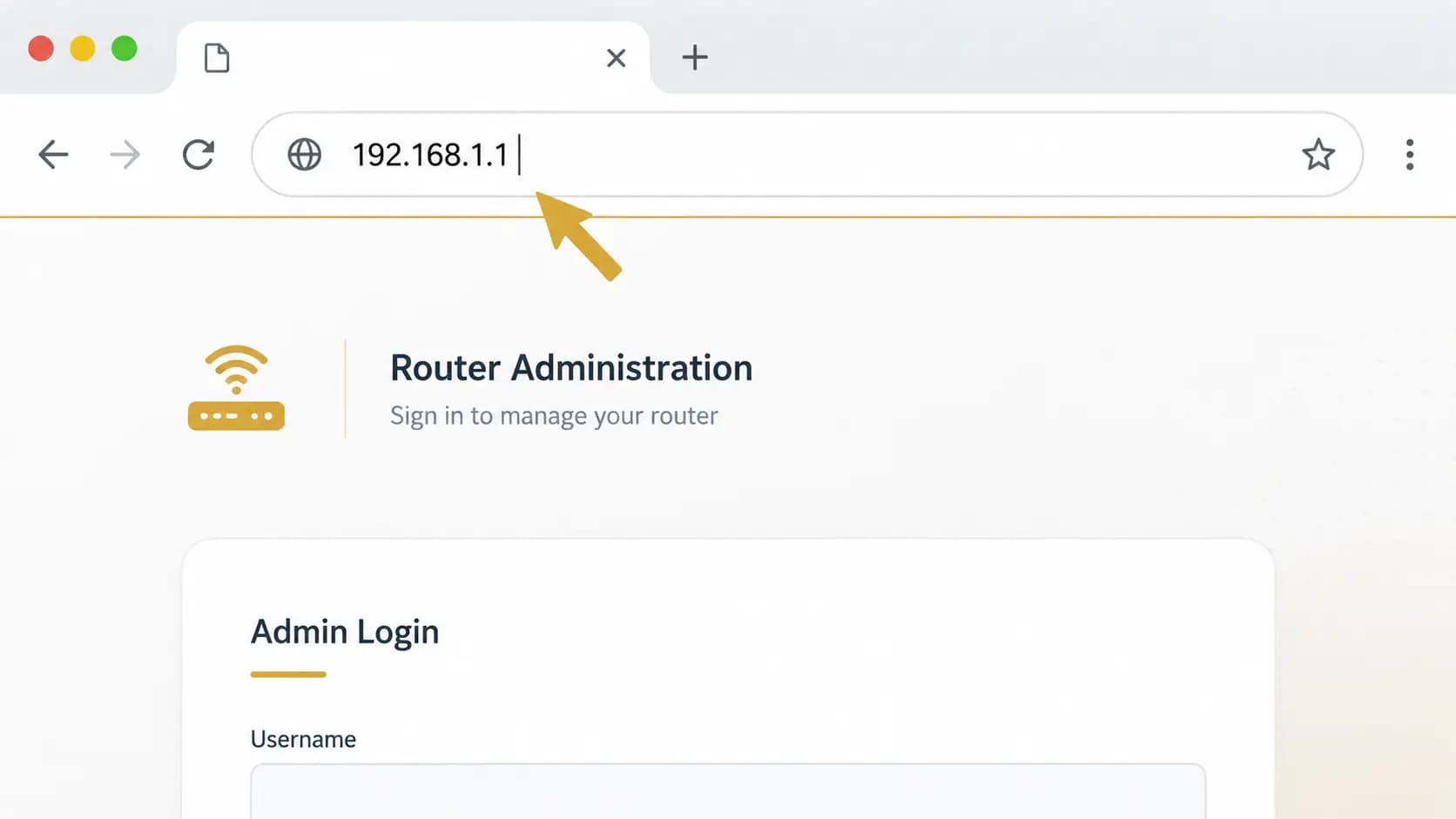
2. Sign in
The settings page will ask for a username and password. If you have never changed them, they are the default admin loginprinted on the router's sticker (often something like "admin" for both). If someone changed them and you don't know the new login, find whoever set up the internet; you'll need access before continuing.
3. Find the DNS settings
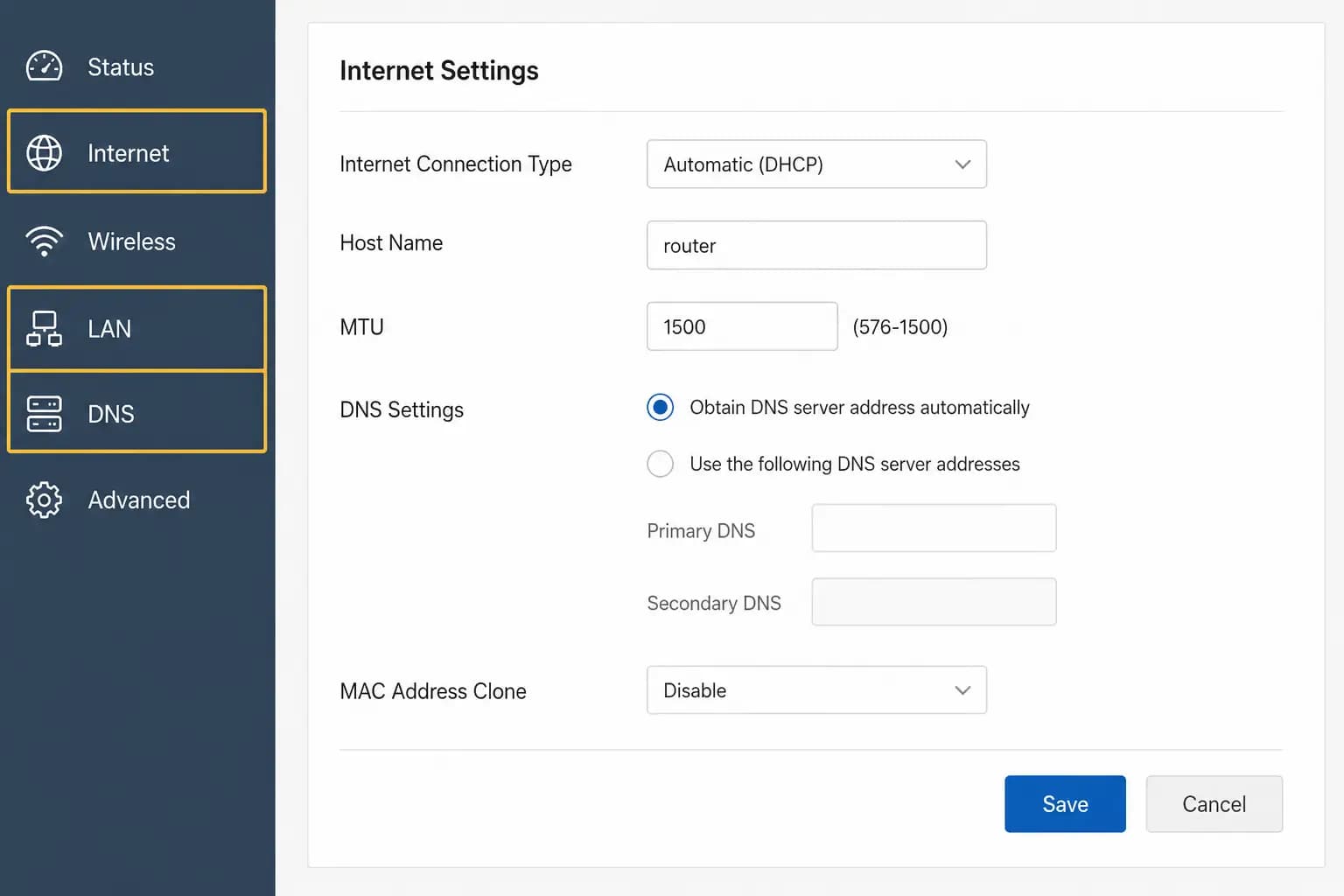
Once you're in, you're looking for where the router lets you set DNS (explained on the next page). Brands name their menus differently, so rather than an exact path, look for a section called"Internet," "Network," "LAN," "DHCP," or "Advanced." The DNS fields usually live inside one of those.
Want brand-specific guidance? Find your router brand →
Next
You're in. Now learn what DNS is and set up encrypted DNS.