
Step 7 of 9 · Check it is working
Confirm the filter is working
Do both checks below. The first confirms AnchorVow recognizes your setup; the second lets you see the filtering with your own eyes.
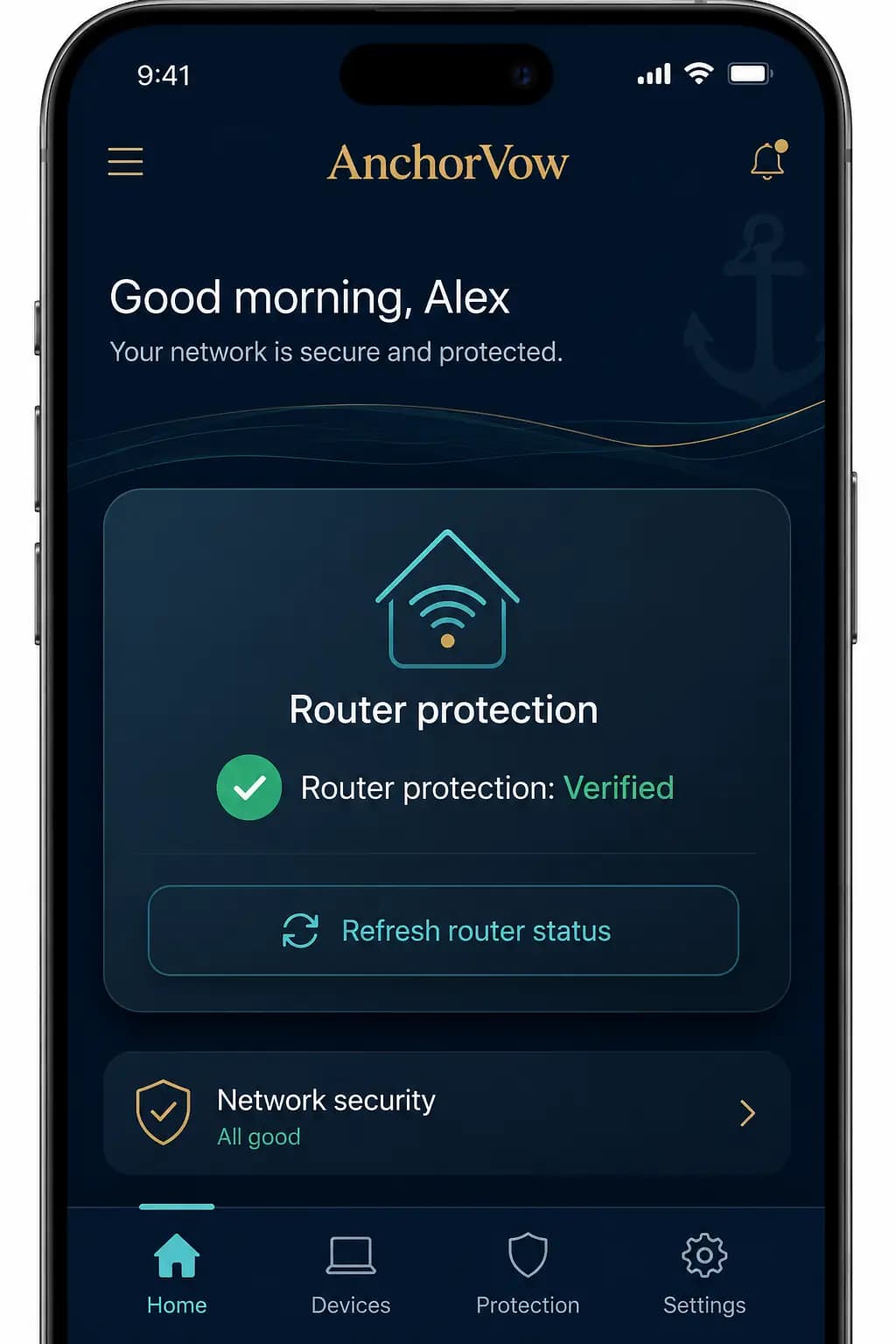
Check 1: In-app status
In the signed-in AnchorVow app's home-router section, tap "Refresh router status". It should move to verifiedonce everything checks out (this can take a little while, and it also needs the partner's custody confirmation from step 3). If it still says "verifying" after a few refreshes, that's covered in troubleshooting.
Be aware:the in-app "verified" flag is set by AnchorVow's servers checking your home network, not by this web page. It is honest status, but it can lag a few minutes behind a change you just made; give it time and refresh.
Check 2: See it with your own eyes
On a device connected to your home Wi-Fi, do a quick hands-on test:
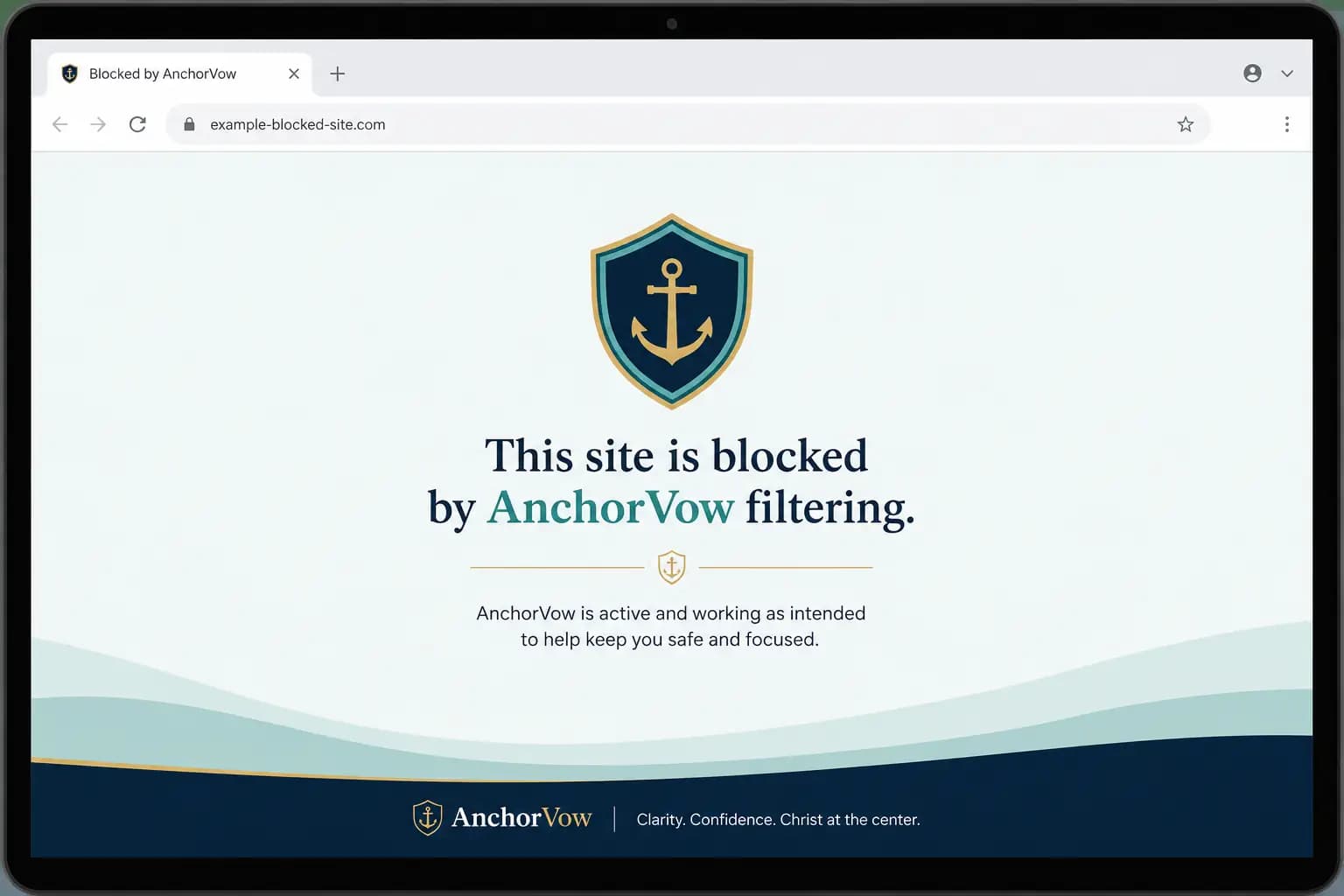
- Open a known-blocked test page.AnchorVow's app points you to a safe test address that should be blocked. If filtering is on, it should not load(you'll see a blocked / can't-reach result).
- Open a normal everyday page. A regular site should load as usual, confirming you only blocked what you meant to.
If the blocked test page loads anyway, the router isn't using the filter yet; recheck the DNS address you entered and see troubleshooting.
Next
Working? Finish by reading what it does and doesn't do. Stuck on a check? Go to troubleshooting.