
Step 5 of 9 · Set up encrypted DNS
Point your router at AnchorVow's filter
This is the heart of the setup. First two quick definitions, then you paste in one address.
What "DNS" means
DNS is your home's address book for the internet.Every time a device wants to open a website, it asks DNS "what's the address for this site?" By pointing your router's DNS at AnchorVow, every lookup goes through AnchorVow's filter first, so known-harmful sites simply aren't looked up, and the device can't reach them.
What "DoH" means
DoH (DNS over HTTPS) is the encrypted, tamper-resistant version of DNS. Plain DNS can be read or changed in transit; DoH locks the address-book lookups so they can't be quietly swapped or downgraded. If your router offers it, use it: it's the stronger option. You may see it labelled "DoH," "DNS over HTTPS," or "Secure DNS / Encrypted DNS."
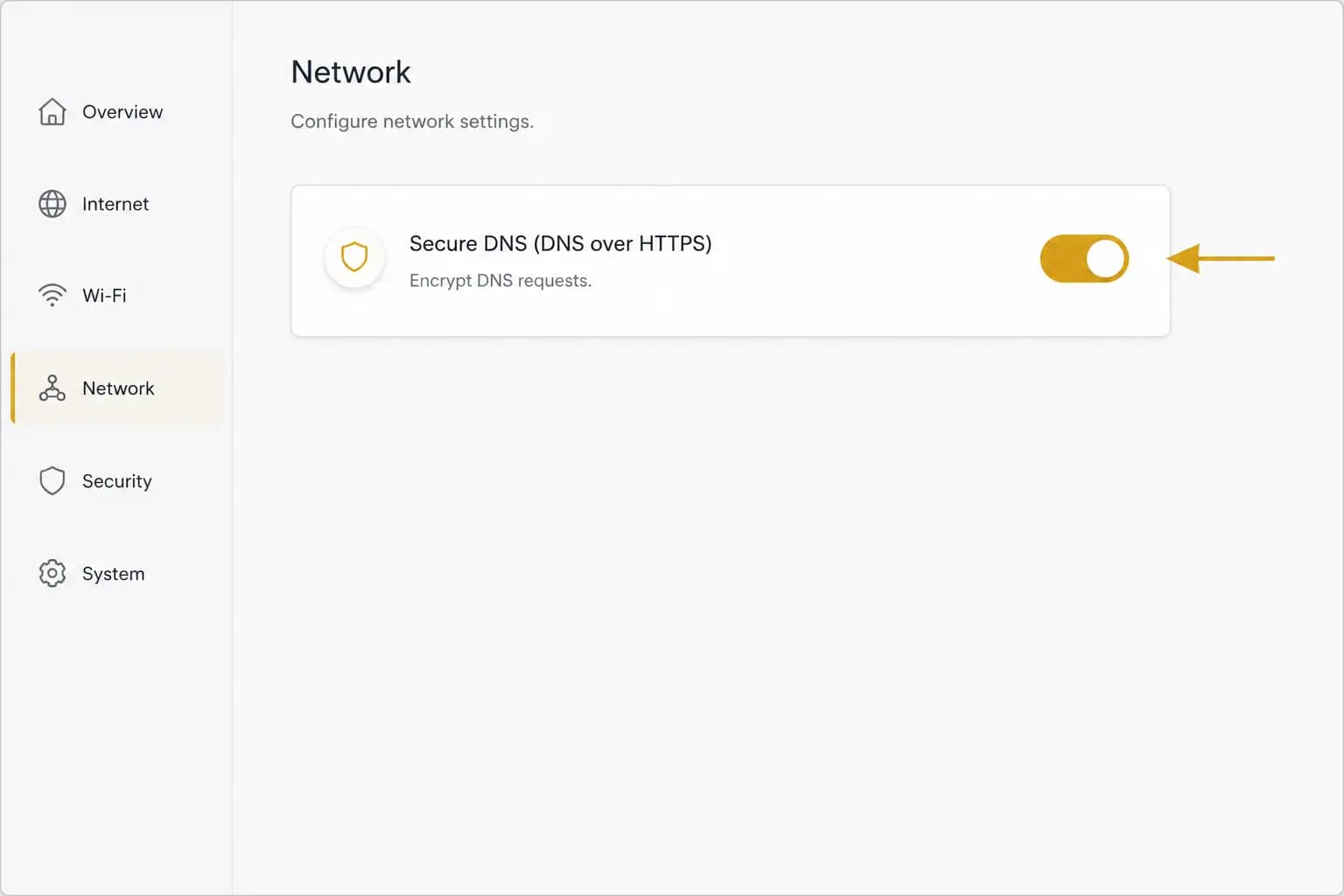
Paste in your AnchorVow filter address
In your router's secure / encrypted DNS field, paste the DoH address. It is a web address shaped like this:
Use your own address from the AnchorVow app, not the example above. Your home has its own personal filter address. Open the signed-in AnchorVow app, go to the home-router section, and copy the exact DoH address shown there. This public page never shows your real address; the example is only to show you what kind of value to expect.
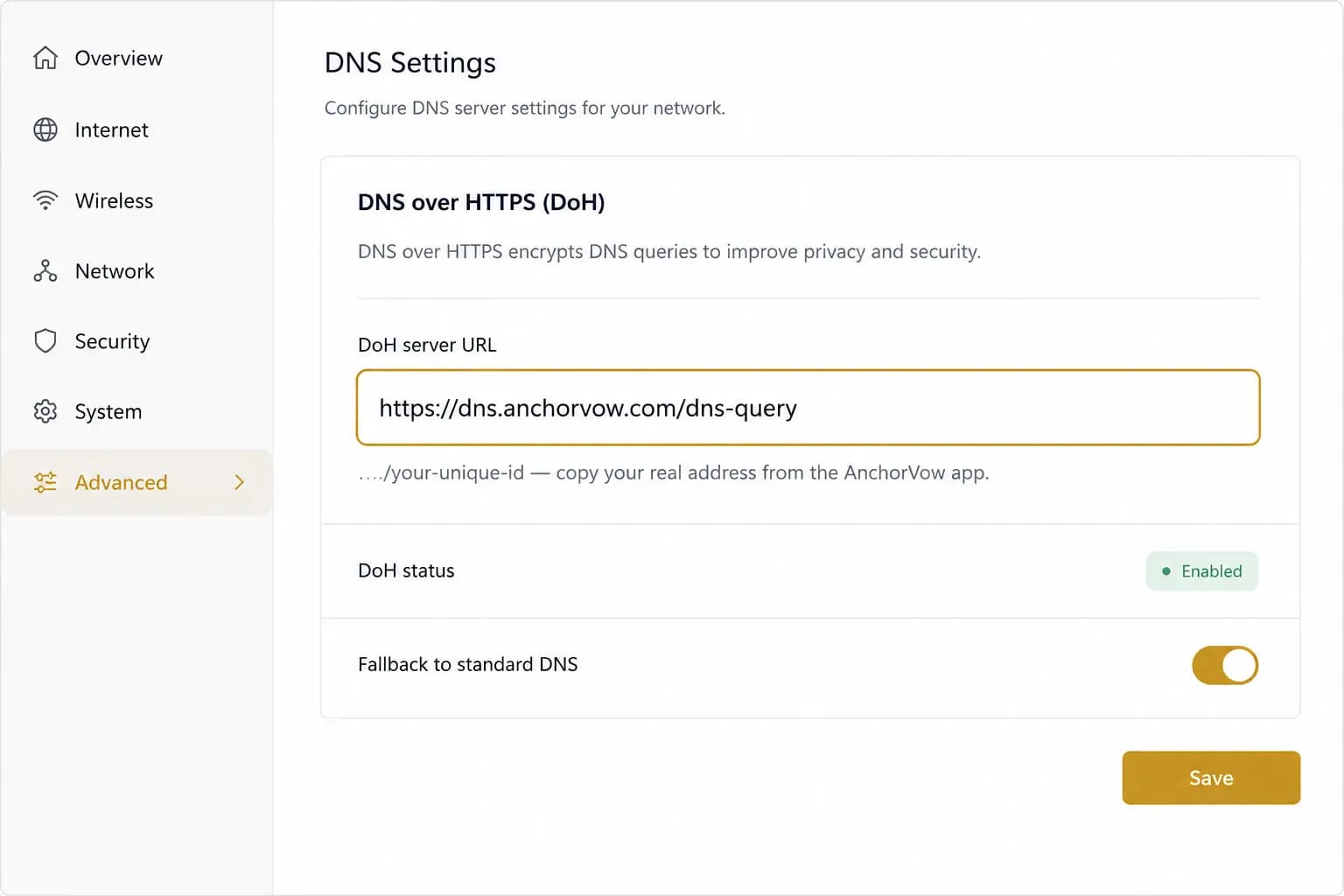
Save, then check
Save the setting (some routers reboot briefly). If your router does not offer an encrypted / DoH option, don't worry; go to fallback (plain) DNS instead. Otherwise, move on to check it is working.