
ASUS · Router setup
ASUS routers
ASUS routers support encrypted DNS (DoH) on many models. Follow the steps below to point your router at AnchorVow's filter using DoH.
DNS capability on ASUS
Encrypted DNS (DoH) supported. Many ASUSrouters expose a DoH or "DNS Privacy Protocol" field. Use it: it is the stronger option. Follow the encrypted DNS (DoH) setup pageafter you have opened your router's settings.
ASUSWRT-powered routers (RT series and most current routers) include a DNS Privacy Protocol option supporting DNS-over-TLS and DoH.
Open your ASUS settings
Open a browser on a device connected to your home Wi-Fi and type the gateway address into the address bar:
Gateway address & login hint: 192.168.1.1 or router.asus.com. Default login is often admin / admin (check the router sticker).
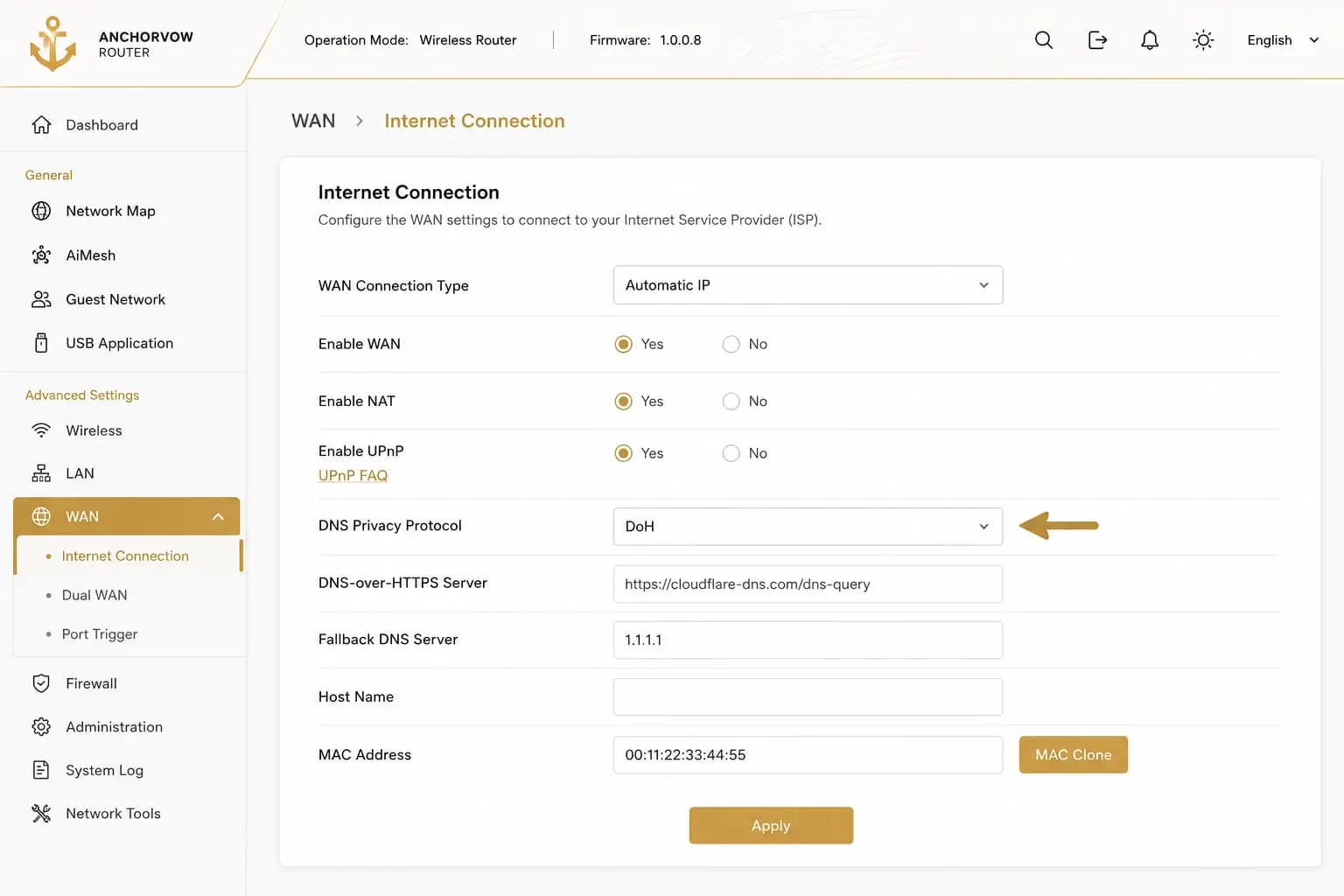
Find the DNS settings
Look for WAN → Internet Connection → DNS Privacy Protocol (DoH or DoT), or Advanced Settings → WAN. Some models label it "DNS-over-TLS" or "Encrypted DNS".
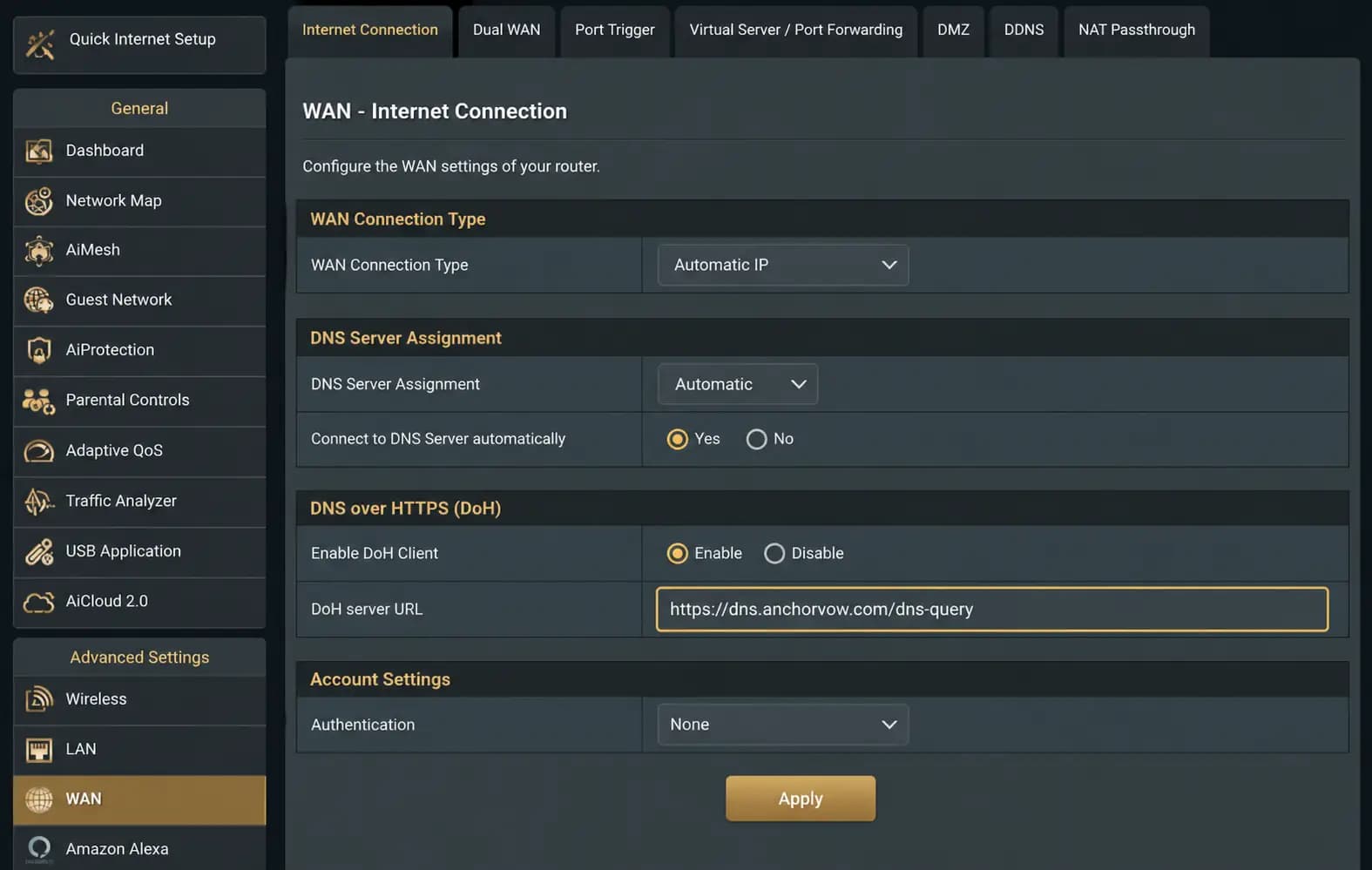
Next step
Once you're in your router's settings and have found the DNS section, follow the set up encrypted DNS (DoH)page to paste in AnchorVow's filter address. Your personal filter address comes from the AnchorVow app, not from this page.
Known gotchas for ASUS
- Merlin firmware (a popular ASUS aftermarket firmware) also supports DoH; the menus are similar.
- Some entry-level ASUS models use a simplified interface that may not expose DNS Privacy Protocol; use fallback DNS if the option is absent.
- After saving WAN settings, the router may drop the internet briefly; this is normal.
Request support
Still stuck after following the steps above? Reach out; we'd rather help than leave you guessing.
- If you're signed in: use in-app messaging to reach your accountability partner, or contact them directly; many setup snags are quickest to solve together.
- By email: write to admin@anchorvow.comfrom the email address on your account and describe what you're seeing (which step, the symptom, and your router brand and model).
An unsupported router is a clear support situation, not a hidden half-working mode. If yours can't be set up, we'd rather tell you plainly so you can rely on the per-device AnchorVow app instead.
Not a router problem? See what it does and doesn't do; it may be working as intended.