
Netgear · Router setup
Netgear routers
Netgear router DoH support varies by model and firmware. This guide walks you through the best approach: encrypted DNS where available, plain fallback DNS otherwise.
DNS capability on Netgear
Encrypted DNS (DoH) is inconsistent on Netgear.Some models expose a Secure DNS or DoH field; many do not. Check your own router's settings. If you see a "Secure DNS," "DoH," or "Encrypted DNS" option, use it and follow the DoH setup page. If not, follow the fallback (plain) DNS page: still filtered, just not encrypted.
Nighthawk and Orbi routers typically expose plain DNS fields; DoH / Secure DNS support is present on select recent Nighthawk firmware but is not universal.
Open your Netgear settings
Open a browser on a device connected to your home Wi-Fi and type the gateway address into the address bar:
Gateway address & login hint: 192.168.1.1 or routerlogin.net. Default login is often admin / password (check the router sticker).
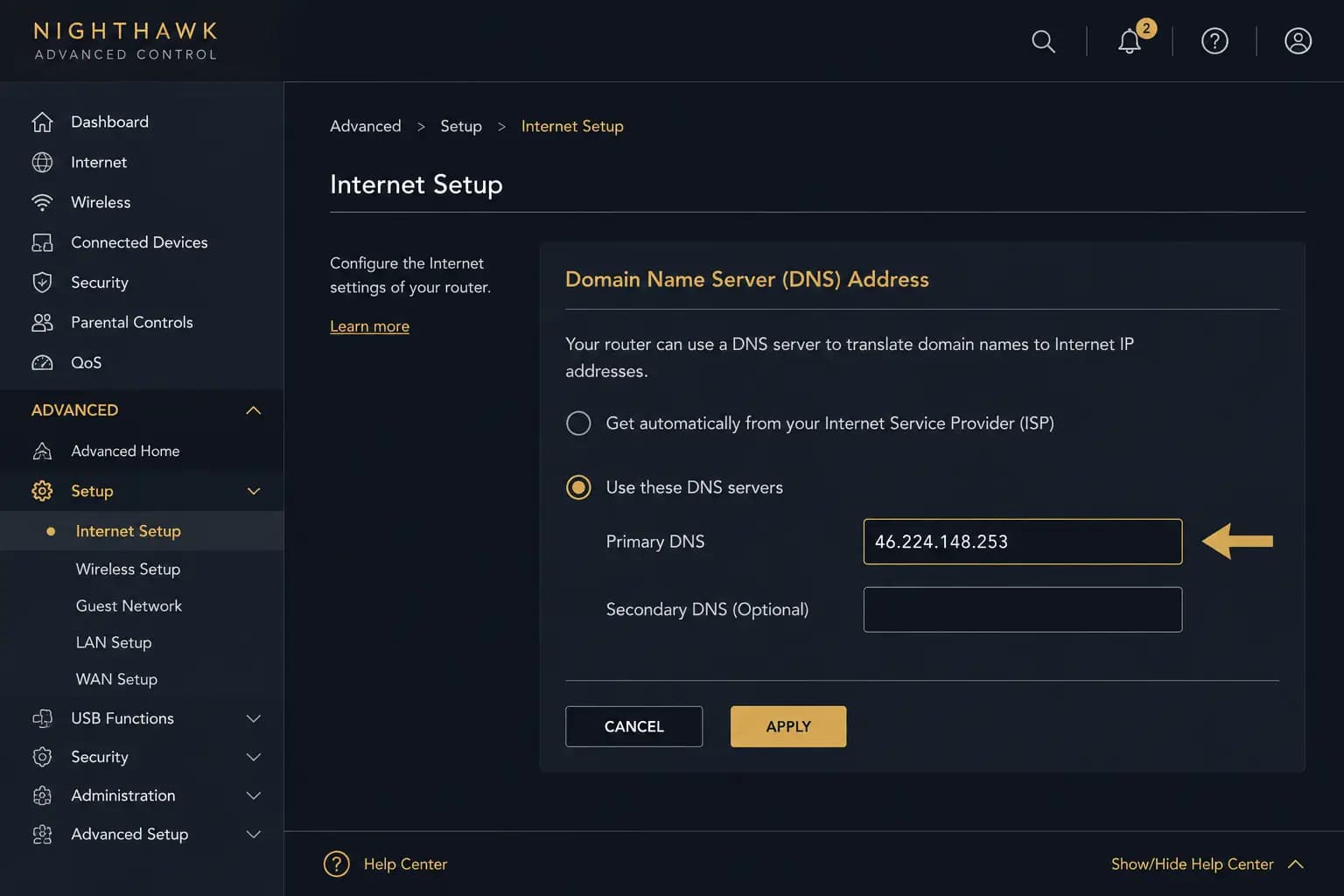
Find the DNS settings
Look for Advanced → Setup → Internet Setup, or Internet → DNS Address. Some Nighthawk models expose a "Secure DNS" or "DNS over HTTPS" option inside Advanced → Security.
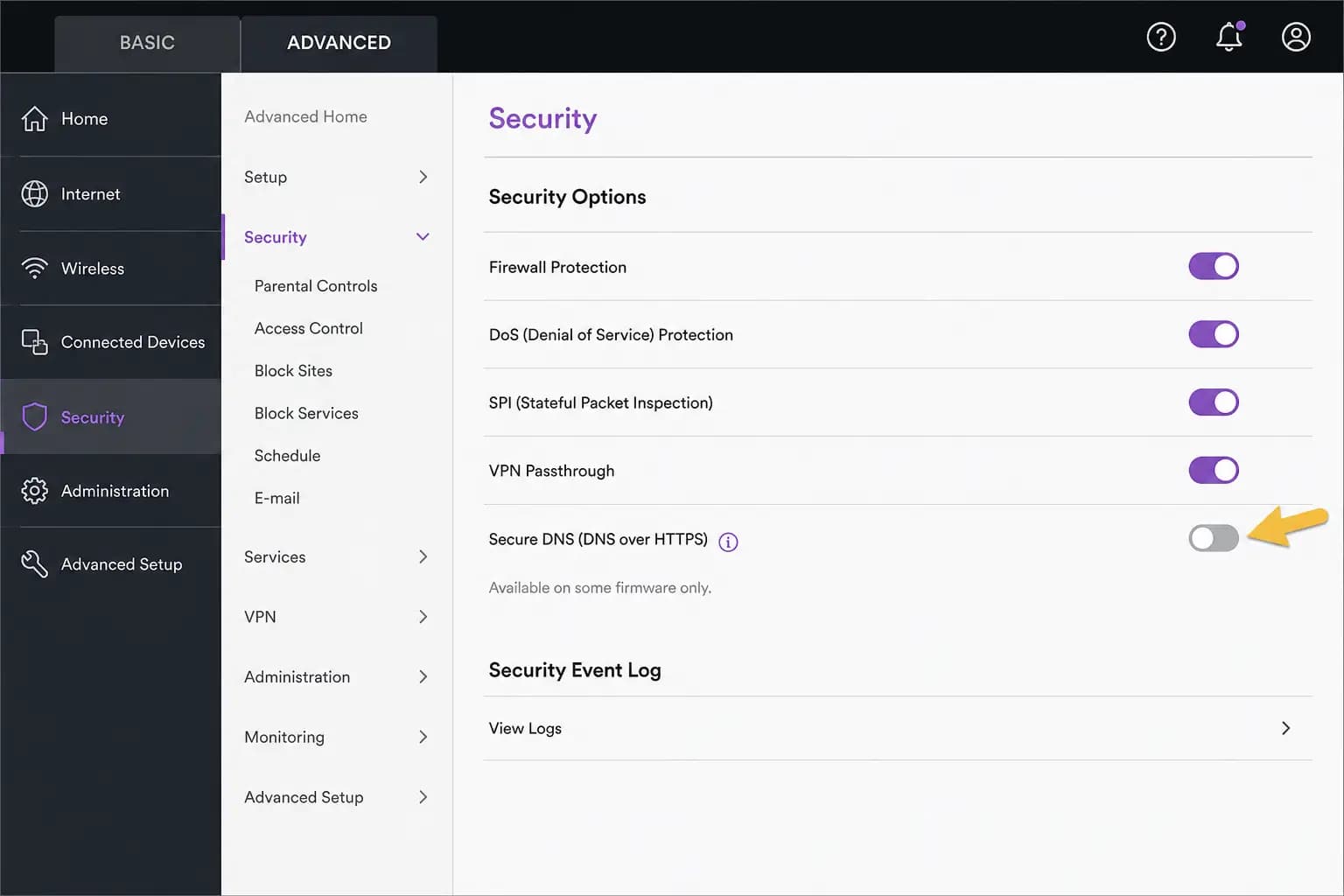
Next step
Once you're in your router's settings, check whether a Secure DNS / DoH field is available:
- If DoH is available: follow the set up encrypted DNS (DoH) page.
- If no DoH field: follow the fallback (plain) DNS page: still filtered, just not encrypted.
Your personal filter address comes from the AnchorVow app, not from this page.
Known gotchas for Netgear
- DoH support varies significantly by model and firmware version. If you see a Secure DNS or DoH field, use it; otherwise use fallback DNS.
- Orbi mesh systems may require changes through the Orbi app rather than the browser admin panel.
- Firmware updates can move menu items; if paths above don't match, look under Advanced or Setup.
Request support
Still stuck after following the steps above? Reach out; we'd rather help than leave you guessing.
- If you're signed in: use in-app messaging to reach your accountability partner, or contact them directly; many setup snags are quickest to solve together.
- By email: write to admin@anchorvow.comfrom the email address on your account and describe what you're seeing (which step, the symptom, and your router brand and model).
An unsupported router is a clear support situation, not a hidden half-working mode. If yours can't be set up, we'd rather tell you plainly so you can rely on the per-device AnchorVow app instead.
Not a router problem? See what it does and doesn't do; it may be working as intended.